
A new tenant is the root of everything you will build in Azure, and the first hour decides how hard it is to break into. This recipe creates one, checks that security defaults are on, adds two emergency access (“break-glass”) accounts that sign in with passkeys, and closes the doors ordinary users should not have: app registrations, new tenants and app consent. One script does the work, and a second one checks it: one line per control, OK or NO.
Why
Every Azure subscription trusts exactly one Microsoft Entra tenant. Whoever controls the tenant controls the subscriptions, so it gets secured before anything else is built in it.
Two things changed recently that shape this recipe:
- MFA is mandatory for Azure. Since October 2024 the portals require it, and since October 2025 the rollout extends to the Azure CLI, Azure PowerShell and infrastructure as code. There are no exceptions, not even for break-glass accounts (Microsoft Learn). An emergency account therefore needs an MFA method that does not depend on any one person’s phone: a passkey.
- New tenants start with good defaults. In this lab, security defaults and the passkey method were already on the moment the tenant existed. The script still checks both, because a tenant you inherit may not be that lucky.
Security defaults are the right baseline for a tenant without Microsoft Entra ID P1. They require MFA from everyone, block legacy authentication, and protect the Azure portal and the command lines. They are all or nothing: once you need exceptions, you move to Conditional Access, which needs P1 (Microsoft Learn).
Before you start
- A paid Azure subscription (Pay-As-You-Go or Enterprise Agreement) in the tenant you sign in from. Free and trial accounts cannot create new tenants.
- PowerShell 7 from GOV-02. The script installs the Microsoft Graph modules it needs the first time it runs.
- A passkey for each break-glass account. In production that is a FIDO2 security key per account, kept in a safe. For a lab, Windows Hello or a passkey manager is enough.
- The scripts are in cloudtales-gr/azure-recipes:
harden.ps1andverify.ps1. Everything here is Microsoft Graph, so this recipe is PowerShell only; on Linux run the same scripts withpwsh.
Steps
Create the tenant
In the Azure portal: Microsoft Entra ID > Overview > Manage tenants > Create. The screen changed in 2026: a workforce tenant is now created as Governed Workforce, linked to one of your subscriptions and a resource group, and your current tenant gets a governance relationship with it. External is for customer-facing apps, not for this.
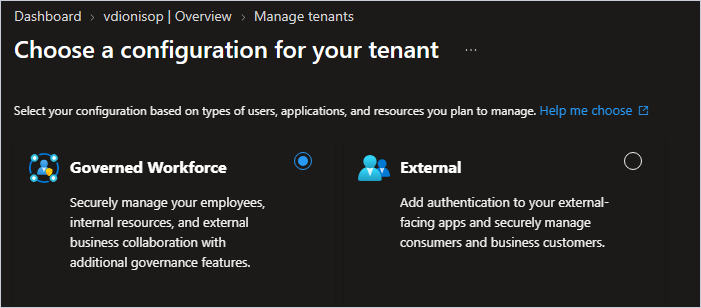
The form asks for an existing resource group and has no “Create new”, so create one first:
az group create -n rg-lab-tenant -l swedencentral
Then fill in the name, the initial domain (it becomes <name>.onmicrosoft.com and can never be changed) and the country. The country decides where Microsoft Entra stores the directory, so pick it carefully: Greece puts the data in Europe.
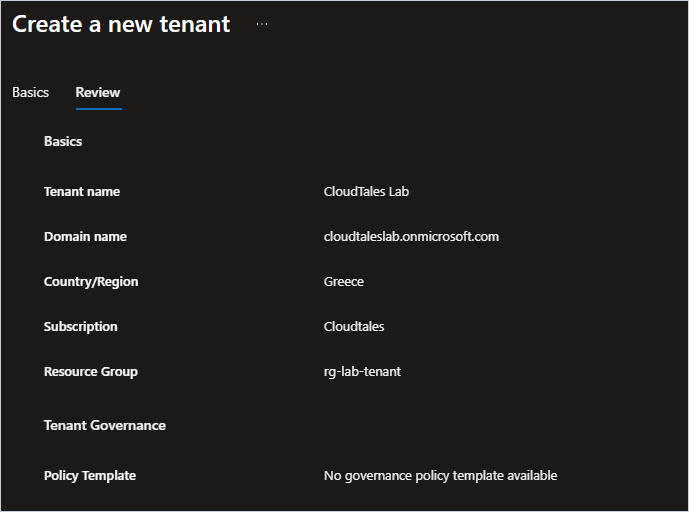
The review page shows no charge. The new tenant runs on Microsoft Entra ID Free, and you become its Global Administrator.
Sign in once and register MFA
Switch to the new directory. The first thing it asks, even of the account that just created it, is MFA. That is security defaults at work: the new tenant wants its own MFA, and MFA you completed in your home tenant does not count here.
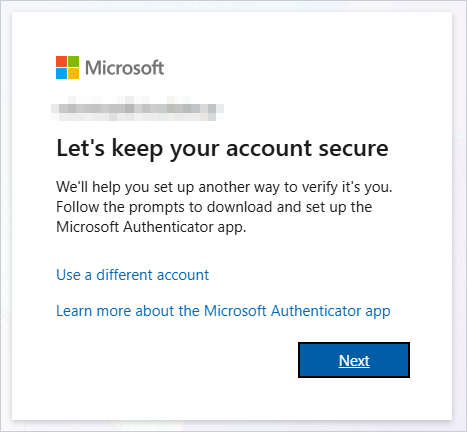
Register the Authenticator app for your account. The break-glass accounts get something different in a moment.
Run the hardening script
pwsh ./harden.ps1 -TenantId cloudtaleslab.onmicrosoft.com
The script signs in to Microsoft Graph with only the permissions it needs and asks you to consent to them once for the tenant. Then, idempotently:
# 1. Security defaults on
if (-not (Get-MgPolicyIdentitySecurityDefaultEnforcementPolicy).IsEnabled) {
    Update-MgPolicyIdentitySecurityDefaultEnforcementPolicy -IsEnabled:$true
}

# 2. Two cloud-only break-glass accounts: random 40-character passwords that never expire,
#    permanent Global Administrator, members of an EmergencyAccess group
New-MgUser -DisplayName "Emergency access 1" -UserPrincipalName "breakglass01@$domain" `
    -MailNickname breakglass01 -AccountEnabled -PasswordPolicies DisablePasswordExpiration `
    -PasswordProfile @{ Password = $pw; ForceChangePasswordNextSignIn = $false }
New-MgRoleManagementDirectoryRoleAssignment -PrincipalId $user.Id -DirectoryScopeId '/' `
    -RoleDefinitionId '62e90394-69f5-4237-9190-012177145e10'   # Global Administrator

# 3. What ordinary users may do
Update-MgPolicyAuthorizationPolicy -BodyParameter @{
    allowInvitesFrom           = 'adminsAndGuestInviters'
    defaultUserRolePermissions = @{
        allowedToCreateApps             = $false
        allowedToCreateTenants          = $false
        permissionGrantPoliciesAssigned = @()   # no user consent to apps
    }
}
Tenant: cloudtaleslab.onmicrosoft.com
Security defaults: already on
Group EmergencyAccess: created
breakglass01@cloudtaleslab.onmicrosoft.com: created
breakglass01@cloudtaleslab.onmicrosoft.com: Global Administrator (permanent)
breakglass02@cloudtaleslab.onmicrosoft.com: created
breakglass02@cloudtaleslab.onmicrosoft.com: Global Administrator (permanent)
Passkeys (FIDO2): already enabled
User settings: no app registrations, no new tenants, no user consent, guests invited by admins only

Store these now in a password manager or a sealed envelope in a safe. They are shown only once:

Account                                    Password
-------                                    --------
breakglass01@cloudtaleslab.onmicrosoft.com ****************************************
breakglass02@cloudtaleslab.onmicrosoft.com ****************************************
The passwords appear once, in your terminal only. Put them straight into a password manager, and never into a chat, a ticket or a screenshot.
The EmergencyAccess group has no effect yet. It exists so that, when you move to Conditional Access later, every policy that blocks or restricts sign-in excludes one group instead of two named accounts.
Give each break-glass account a passkey
In a private browser window, open https://aka.ms/mysecurityinfo and sign in as breakglass01. Here is the trap: security defaults sends every new account straight into setting up Microsoft Authenticator, and if you just click through, your emergency account ends up tied to your own phone, with the same method you use every day.
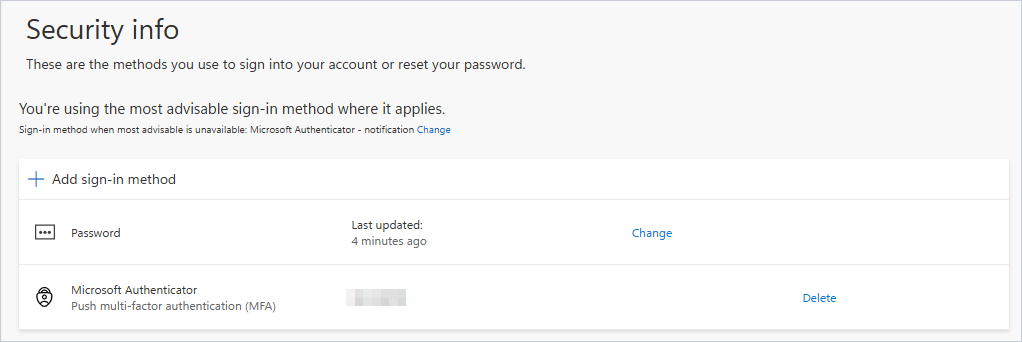
Choose Add sign-in method > Passkey instead. Once the passkey is listed, Delete the Authenticator entry. Repeat for breakglass02.
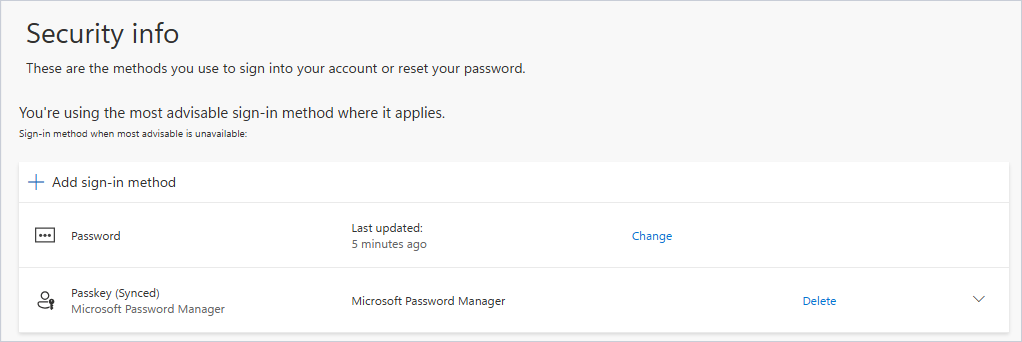
The passkey above is synced: it lives in a passkey manager tied to a personal account. That is fine for a lab and wrong for production. Microsoft’s guidance for emergency access is a device-bound passkey on a FIDO2 key that belongs to no one, stored in a safe, with a different method from your daily admin accounts (Microsoft Learn).
Then test it: in a new private window, sign in to https://entra.microsoft.com as breakglass01 with the passkey. An emergency account you have never tried is not an emergency account.
Run the check
pwsh ./verify.ps1 -TenantId cloudtaleslab.onmicrosoft.com
OK  Tenant                             cloudtaleslab.onmicrosoft.com
OK  Security defaults                  on
OK  Global Administrators              3 (keep it under 5)
OK  EmergencyAccess group              2 members
OK  breakglass01 cloud-only, enabled   breakglass01@cloudtaleslab.onmicrosoft.com
OK  breakglass01 Global Admin (permanent)
OK  breakglass01 password never expires DisablePasswordExpiration
OK  breakglass01 passkey registered    1 passkey(s)
OK  breakglass02 cloud-only, enabled   breakglass02@cloudtaleslab.onmicrosoft.com
OK  breakglass02 Global Admin (permanent)
OK  breakglass02 password never expires DisablePasswordExpiration
OK  breakglass02 passkey registered    1 passkey(s)
OK  Passkeys (FIDO2) method            enabled
OK  Users can register apps            no
OK  Users can create tenants           no
OK  Users can consent to apps          no
OK  Who can invite guests              adminsAndGuestInviters
The three Global Administrators are the two break-glass accounts and the tenant’s first administrator.
Verify
Every line of verify.ps1 starts with OK, and you have signed in once as each break-glass account with its passkey. Run the check again every 90 days, and sign in with each emergency account at the same time: that is how often Microsoft recommends testing them.
Clean up
Keep the tenant: the identity recipes build on it, starting with ID-01. If you do want to remove it, delete every user, group and app in it first, then Microsoft Entra ID > Overview > Manage tenants > Delete, and finally delete the rg-lab-tenant resource group.
Troubleshooting
There is no “Microsoft Entra ID” option, only Governed Workforce and External. That is the 2026 screen; Governed Workforce is the workforce tenant. Most guides on the web still show the old one.
The Resource group list is empty. The form only accepts an existing group. Create one with
az group create, then pick the subscription again so the list refreshes.“Only paid customers can create a new tenant”. The tenant you create it from needs a paid subscription (Pay-As-You-Go or EA). Free and trial subscriptions cannot.
A break-glass password was pasted somewhere it should not be. Treat it as exposed and rotate it:
Connect-MgGraph -TenantId <name>.onmicrosoft.com -NoWelcome -Scopes User.ReadWrite.All, User-PasswordProfile.ReadWrite.All
$c  = 'ABCDEFGHJKLMNPQRSTUVWXYZabcdefghijkmnopqrstuvwxyz23456789!@#$%*-_=+'
$pw = -join (1..40 | ForEach-Object { $c[[Security.Cryptography.RandomNumberGenerator]::GetInt32($c.Length)] })
Update-MgUser -UserId breakglass01@<name>.onmicrosoft.com -PasswordProfile @{ Password = $pw; ForceChangePasswordNextSignIn = $false }
The break-glass account ended up with Authenticator push. The security defaults registration screen leads there. Add a passkey from Security info, then delete the Authenticator entry.
Going further
Two recipes complete this one. ID-14 raises an alert the moment a break-glass account signs in, because nobody should use one without everyone knowing. ID-03 replaces security defaults with a Conditional Access baseline once you have Microsoft Entra ID P1, and that is where the EmergencyAccess group earns its place.
Comments
Comments are stored in GitHub Discussions. Sign in with GitHub to comment or react.