
A new starter whose password nobody knows, not even the starter. On day one they get a Temporary Access Pass, a time-limited code from the admin. They use it once to put a passkey in Microsoft Authenticator on their phone, and from then on they sign in with a fingerprint or a PIN. The pass is removed, and the password stays a 64-character random string that was never shown to anyone.
Why
Passwords get phished, reused and reset over the phone. A passkey does not: the private key never leaves the phone, and it only answers to login.microsoft.com, so a look-alike sign-in page gets nothing from it. Microsoft calls passkeys phishing-resistant. Push notifications and codes are not, because a user can approve a sign-in or type a code into a fake page.
The hard part is the first sign-in. To register a passkey, the user must already be signed in, and a password defeats the purpose. The Temporary Access Pass (TAP) fills that gap: it counts as strong authentication, it expires on its own, and it exists only to register something better.
Everything here worked in a tenant on Microsoft Entra ID Free with security defaults on, the one from GOV-01. No P1 licence is needed.
Before you start
- The tenant from GOV-01, where passkeys (FIDO2) are already on, or any test tenant. You need Authentication Policy Administrator and User Administrator, or Global Administrator in a lab.
- PowerShell 7 from GOV-02.
- A phone with Microsoft Authenticator (Android 14 or later, iOS 17 or later). For signing in on a PC with the phone, both need Bluetooth and internet.
- The scripts are in cloudtales-gr/azure-recipes:
deploy.ps1,methods.ps1,remove-tap.ps1,verify.ps1andcleanup.ps1. Microsoft Graph only, so PowerShell only; on Linux run them withpwsh.
Steps
Turn on the pass for a pilot group, and create the user
Policies go to a group, not to everyone. deploy.ps1 creates sg-passwordless-pilot, a user in it, and turns on Temporary Access Pass for that group only:
Update-MgPolicyAuthenticationMethodPolicyAuthenticationMethodConfiguration -AuthenticationMethodConfigurationId 'TemporaryAccessPass' -BodyParameter @{
    '@odata.type'            = '#microsoft.graph.temporaryAccessPassAuthenticationMethodConfiguration'
    state                    = 'enabled'
    defaultLifetimeInMinutes = 60
    minimumLifetimeInMinutes = 60
    maximumLifetimeInMinutes = 480
    defaultLength            = 8
    isUsableOnce             = $false
    includeTargets           = @(@{ targetType = 'group'; id = $group.Id; isRegistrationRequired = $false })
}
The user is created with a 64-character random password that the script never prints or stores. Entra needs a password on the account; nobody needs to know it. Then the script issues the pass:
New-MgUserAuthenticationTemporaryAccessPassMethod -UserId $user.Id -BodyParameter @{ lifetimeInMinutes = 60; isUsableOnce = $false }
pwsh ./deploy.ps1 -TenantId cloudtaleslab.onmicrosoft.com
Tenant: cloudtaleslab.onmicrosoft.com
group  sg-passwordless-pilot
user   dimitra.kalogirou@cloudtaleslab.onmicrosoft.com (password: random, 64 characters, not stored anywhere)
member dimitra.kalogirou@cloudtaleslab.onmicrosoft.com of sg-passwordless-pilot
policy Passkeys (FIDO2): already enabled
policy Temporary Access Pass: enabled for sg-passwordless-pilot

Temporary Access Pass (shown once; valid 60 minutes, more than one sign-in):

User      : dimitra.kalogirou@cloudtaleslab.onmicrosoft.com
Pass      : ********
ValidFrom : 16:44
ValidTo   : 17:44
The pass is shown once. Give it to the user the way you would give a key: in person or over a channel you trust, never in the same email as the user name.
I chose a pass that works for more than one sign-in. A one-time pass is stricter, but then the user has only 10 minutes after signing in to finish registering a passkey.
Register the passkey from the Authenticator app, not the browser
The obvious path does not work. Signed in at aka.ms/mysecurityinfo with the pass, Add sign-in method offers Passkey in Microsoft Authenticator:
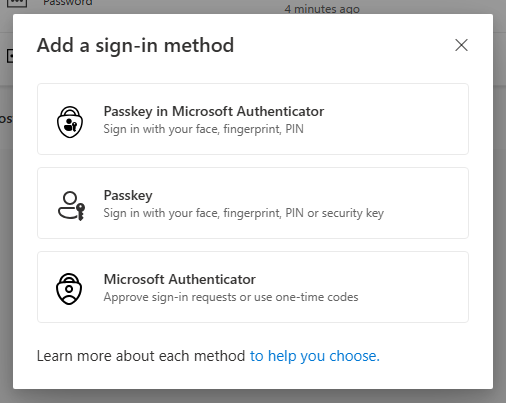
It shows a QR code, the phone scans it and creates a passkey, and then:
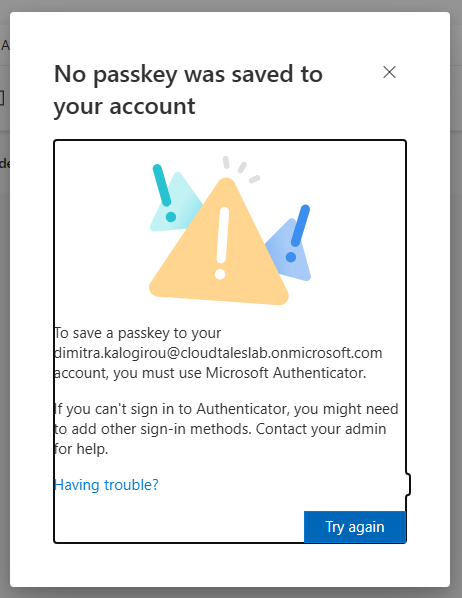
The phone did create a passkey, but in its default passkey provider (Google Password Manager or Samsung Pass on Android, iCloud Keychain on iPhone), not in Authenticator. Entra checks where the passkey lives and refuses it.
What worked was starting on the phone:
- In Authenticator: + > Work or school account > Sign in, enter the user name, and sign in with the Temporary Access Pass.
- Let the app create the passkey, and confirm with a fingerprint or the phone PIN.
- If the phone asks, allow Authenticator as a passkey provider. You can also turn it on beforehand: on Android under Settings > Passwords, passkeys and accounts, on iPhone under Settings > General > AutoFill & Passwords.
Microsoft documents the same rule for iPhones: a passkey in Authenticator that Entra can verify is registered only from inside the app. On Android the browser route can work, but only once Authenticator is the provider. Starting in the app works on both.
Back in Security info, the passkey is there, marked Device bound: it stays on that phone and is not synced to the cloud. Signing in to the app also registered Authenticator for phone sign-in and notifications, the fallback when a passkey cannot be used.
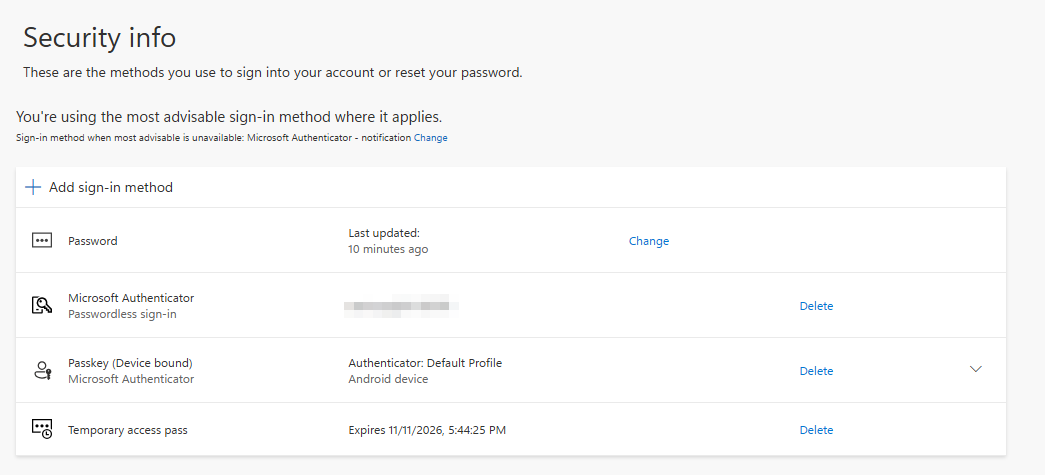
Sign in without a password
Sign out, open a private window, enter the user name, and choose Sign-in options > Face, fingerprint, PIN or security key. Windows shows a QR code; scan it with the phone, Bluetooth connects the two, and the phone asks for the fingerprint:
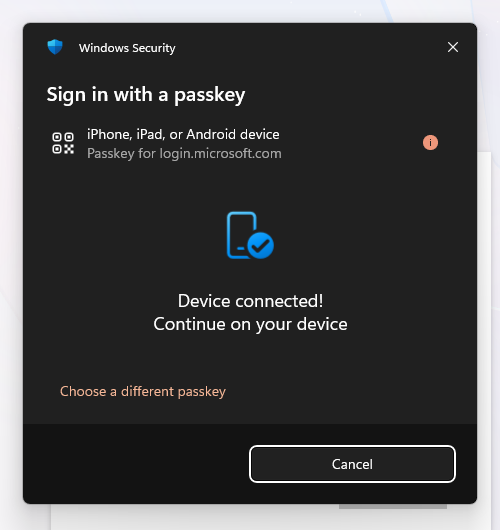
Look at the second line: Passkey for login.microsoft.com. That is the phishing resistance. A fake page on any other domain cannot ask for this passkey at all.
See who signs in with what
methods.ps1 lists every user’s registered methods, then the pilot user’s passkeys and pass:
pwsh ./methods.ps1 -TenantId cloudtaleslab.onmicrosoft.com
--- Every user: registered methods

User                                            Passwordless Methods
----                                            ------------ -------
admin@cloudtaleslab.onmicrosoft.com                    False microsoftAuthenticator, password
breakglass01@cloudtaleslab.onmicrosoft.com              True fido2, password
breakglass02@cloudtaleslab.onmicrosoft.com              True fido2, password
dimitra.kalogirou@cloudtaleslab.onmicrosoft.com         True fido2, microsoftAuthenticator, password, temporaryAccessPass

--- Passkeys of dimitra.kalogirou@cloudtaleslab.onmicrosoft.com

Name                           Model                             AAGUID                               Kind
----                           -----                             ------                               ----
Authenticator: Default Profile Microsoft Authenticator - Android de1e552d-db1d-4423-a619-566b625cdc84 Microsoft Authenticator (Android)

--- Temporary Access Pass of dimitra.kalogirou@cloudtaleslab.onmicrosoft.com

IsUsable MethodUsabilityReason IsUsableOnce LifetimeInMinutes Created
-------- --------------------- ------------ ----------------- -------
    True EnabledByPolicy              False                60 16:44
Three things in that output:
- The first table is a quick audit of the whole tenant. Here the only account without a phishing-resistant method is
admin@, an administrator. In a real tenant, that is the first account to fix. - Every passkey carries an AAGUID, which says what made it.
de1e552d-…is Microsoft Authenticator on Android;90a3ccdf-…is the iPhone version. A FIDO2 security key has its maker’s AAGUID. Passkey policies can allow or block by AAGUID. - The pass is still usable for the rest of its hour.
Take the pass away
The passkey works, so the pass has no job left. Do not wait for it to expire:
pwsh ./remove-tap.ps1 -TenantId cloudtaleslab.onmicrosoft.com
removed Temporary Access Pass 0140aee6-2e81-4b80-a993-5016b2ef52b0
The script refuses to remove the pass if the user has no passkey yet, because that would lock them out.
Verify
pwsh ./verify.ps1 -TenantId cloudtaleslab.onmicrosoft.com
OK  Passkeys (FIDO2) policy            enabled
OK  Temporary Access Pass policy       enabled
OK  Temporary Access Pass targets      sg-passwordless-pilot
OK  Pilot user                         dimitra.kalogirou@cloudtaleslab.onmicrosoft.com
OK  Member of sg-passwordless-pilot
OK  Passkeys registered                1
OK  Passkey in Microsoft Authenticator 1
OK  No Temporary Access Pass left      0
Clean up
pwsh ./cleanup.ps1 -TenantId cloudtaleslab.onmicrosoft.com
It deletes and purges the user, deletes the group and turns Temporary Access Pass off again (-KeepTapPolicy leaves it on). Passkeys (FIDO2) stay on, because the break-glass accounts from GOV-01 use them. The passkey on the phone does not go away with the account: in Authenticator, open the account and remove it.
Troubleshooting
- “No passkey was saved to your account. To save a passkey… you must use Microsoft Authenticator.” The phone saved the passkey in its default provider. Make Authenticator a passkey provider on the phone, then register from inside the Authenticator app (step 2).
- “Device connected! Continue on your device” and nothing happens on the phone. Bluetooth must be on, on both the PC and the phone, and both need internet. Corporate firewalls must allow
cable.ua5v.comfor Android, andcable.auth.complus Apple’s app-site-association addresses for iPhones. New-MgUserAuthenticationTemporaryAccessPassMethodfails right after the user is created. The policy has not seen the new group member yet.deploy.ps1retries for a minute.- The pass has expired before the user got to it. Run
deploy.ps1again; it issues a new one and changes nothing else. - The user lost the phone. The passkey went with it. Delete it in the Entra admin center under the user’s Authentication methods, issue a new pass, and register on the new phone. This is why two passkeys, such as the phone and a security key, are better than one.
Going further
A FIDO2 security key registers the same way: Add sign-in method > Passkey, then touch the key. Passkey policies can allow only Microsoft Authenticator and named key models, by AAGUID. ID-03 adds Conditional Access for administrators; with it you can require phishing-resistant authentication, such as these passkeys, for admin roles. Conditional Access needs Microsoft Entra ID P1.
Comments
Comments are stored in GitHub Discussions. Sign in with GitHub to comment or react.